Webflow Exporter Guide For CMS To HTML Without Content Loss
If you’ve tried to convert a Webflow CMS project into static HTML, you’ve likely hit the same snag as everyone else: Webflow’s default export skips a lot of dynamic content. The result? Missing collection pages, broken pagination, and vanishing images. This guide shows you a reliable path to Webflow CMS to HTML without content loss using ExFlow — a specialized Webflow Exporter and Webflow Downloader that captures CMS, assets, and links, then delivers a clean, static site you can deploy anywhere.
Why convert Webflow CMS to static HTML?
- Cost control: If Webflow hosting feels too expensive for your use case, static hosting is often pennies on the dollar. Think of it as a pragmatic Webflow Alternative for certain projects.
- Performance: Static HTML files are fast by default and easy to cache on CDNs.
- Portability: Self-Host Webflow Site anywhere — S3, GitHub Pages, Netlify, FTP, or directly on ExFlow’s hosting.
- Compliance and control: Keep a verifiable snapshot of your content and code.
Why content is often lost with the default Webflow export
- CMS pages aren’t included: Collection pages and blog posts rendered at runtime don’t export by default.
- Lazy-loading and infinite scroll: Content only loads when visible or when the user paginates.
- Script-dependent rendering: Elements assembled by client-side JS won’t appear in a basic scrape.
- Asset paths and relative links: These can break once decoupled from the Webflow environment.
The reliable path: ExFlow, a specialized Webflow Exporter
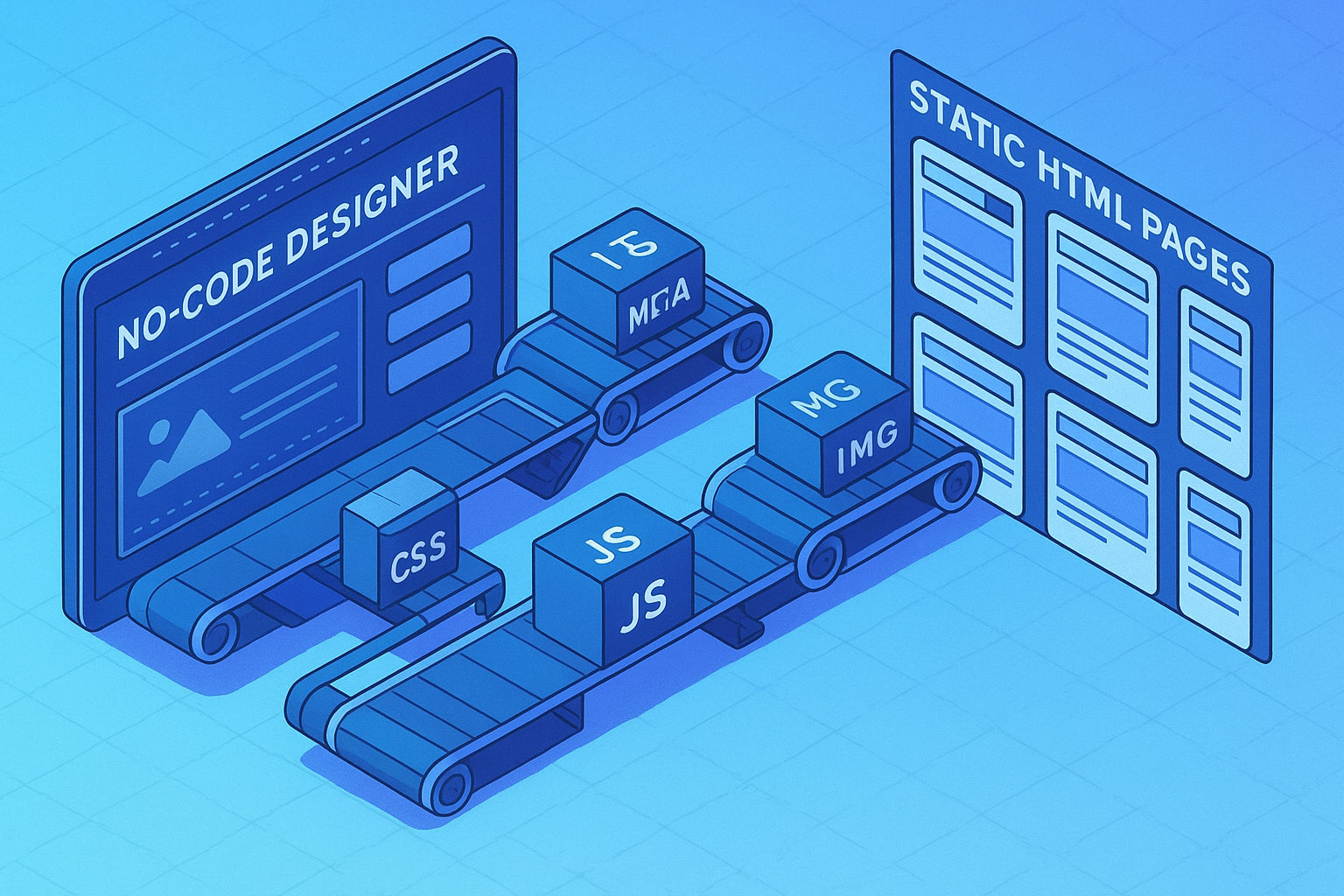
ExFlow.site is purpose-built to Download Webflow CMS and convert Webflow to Static HTML correctly — including CSS, JS, images, and CMS pages. Beyond a complete export, ExFlow can:
- Export all pages, including collection pages (CMS) and pagination states.
- Export CSS files, JS files, images, and media.
- Remove the 'Made with' badge.
- Add custom script.js and style.css files.
- Save pages with the .html extension.
- Auto-sync to Git, S3, or FTP.
- Host your exported site, with optional custom domain and unlimited bandwidth (plan-dependent).
Note: ExFlow offers a free way to get started, with higher limits and advanced syncing available on paid plans.

Step-by-step: Webflow CMS to HTML without content loss
Follow this checklist to ensure your entire site — including CMS — exports cleanly the first time.
- Prepare your site for a complete crawl
- Publish your site to a live domain or staging domain that ExFlow can access.
- Ensure all important CMS pages are reachable by links (avoid orphaned items).
- Temporarily disable noindex or password gates that would block crawling (re-enable after export if needed).
- Confirm pagination links exist for long lists (e.g., /blog?page=2) so all entries can be discovered.
- Use ExFlow to capture everything
- Go to ExFlow.site and paste your site URL.
- Enable: Export CSS files, Export JS files, Export Images / Media Files, Export All Pages, and pages with .html extension.
- Optional: Remove the badge, and add custom script.js or style.css for post-export tweaks.
- Choose automatic syncing if you want instant deploys:
- Start the export. When done, download the ZIP or let ExFlow push it to your destination.
- Verify completeness locally
- Open the exported index.html and click through all pages and pagination states.
- Spot-check CMS entries: compare the number of blog posts, product pages, or portfolio items with your live site.
- Verify asset integrity: images load, video poster frames appear, and icons are embedded or referenced correctly.
- Check links: absolute vs relative paths, cross-page navigation, breadcrumbs, and canonical URLs.
Preserve SEO and metadata during export
Static doesn’t mean losing your search footprint. Use this SEO checklist:
- Page titles and meta descriptions: Confirm they’re present on all pages (collection items included).
- Open Graph and Twitter tags: Ensure OG images and titles render on key pages.
- Canonicals: Avoid duplicate content by retaining canonical tags from the source pages.
- Structured data: If you use JSON-LD for articles, products, or events, verify it appears in the static output.
- Sitemap and robots: Generate or keep a sitemap.xml and robots.txt on your new host.
- Redirects: If URL structures change post-export, set 301s using your host’s rules (e.g., Netlify _redirects, S3/CloudFront behaviors, or your web server config).
Deploy options for your static export
You can Self-Host your Webflow Site anywhere. ExFlow supports hosting and sync out of the box:
- Host on ExFlow
- Amazon S3 (static website)
- Git-based workflows
- Traditional server via FTP
Helpful video walk-throughs:
- How to Export CMS Pages on Webflow for FREE: https://www.youtube.com/watch?v=USu9ktYjFDU
- Export a Webflow Site for Free + Badge Removal: https://www.youtube.com/watch?v=38hVzKheSvs
Common pitfalls (and how to avoid them)
- Missing CMS items due to filters: If a collection list filters entries (e.g., featured only), ensure there are crawlable links to all items elsewhere (archive pages, categories, tags).
- Infinite scroll or load more: Prefer paginated links during export so ExFlow can reach deeper entries.
- Client-side injected content: If JS builds content after load, confirm the generated HTML exists in the exported version. If not, consider pre-rendering or adjusting the component to server-rendered HTML.
- Forms and search: Native Webflow forms won’t submit on pure static hosting without a backend. Use third-party form endpoints or serverless functions. For search, consider a static-friendly service or client-side index.
- 404 and 301s: Ensure a proper 404.html and redirect rules are configured on your host.
When to consider static over native hosting
- You need a downloadable Webflow CMS archive for compliance or backups.
- You plan to move content elsewhere or reduce recurring hosting costs.
- Your site is largely informational and benefits from pure static speed.
- You need total control over headers, caching, and edge rules.
Take control of your Webflow CMS export
If you’ve been searching for a dependable Webflow Exporter, Webflow Downloader, or a straightforward way to Download Webflow CMS and convert Webflow CMS to HTML without content loss, ExFlow is the streamlined solution. Export all pages, preserve SEO, and deploy to any platform — or one-click host directly on ExFlow.
Ready to try it? Start here: ExFlow.site
Compliance note: Only export and host content you own or have rights to use, and follow your platform’s terms. If you use syncing features (Git, S3, FTP), store credentials securely and rotate them periodically.