I Test Every Shopify Package Insert QR Code Before It Ships
I used to treat the little card inside an order as a branding flourish. Then I found a stack of expensive inserts pointing at a sale page that had ended two weeks earlier. That was the day I made package-insert QR codes an operations task, not a design task.
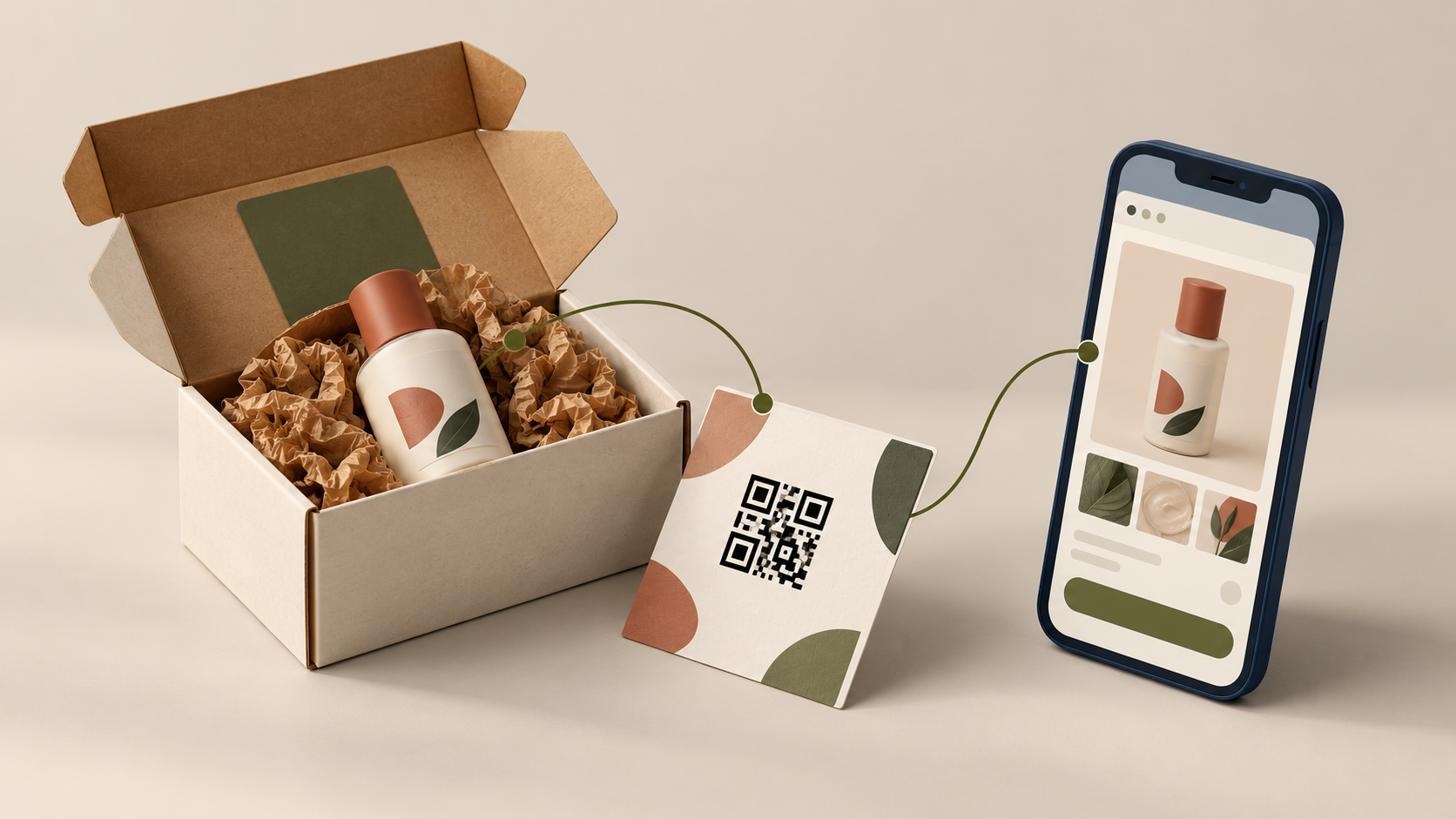
A QR code earns its place only when it takes a customer to the next useful thing: care instructions, setup help, a replenishment page, a review request, or an honest product guide. It should not be a mystery square that a customer has to decode into a dead campaign URL.
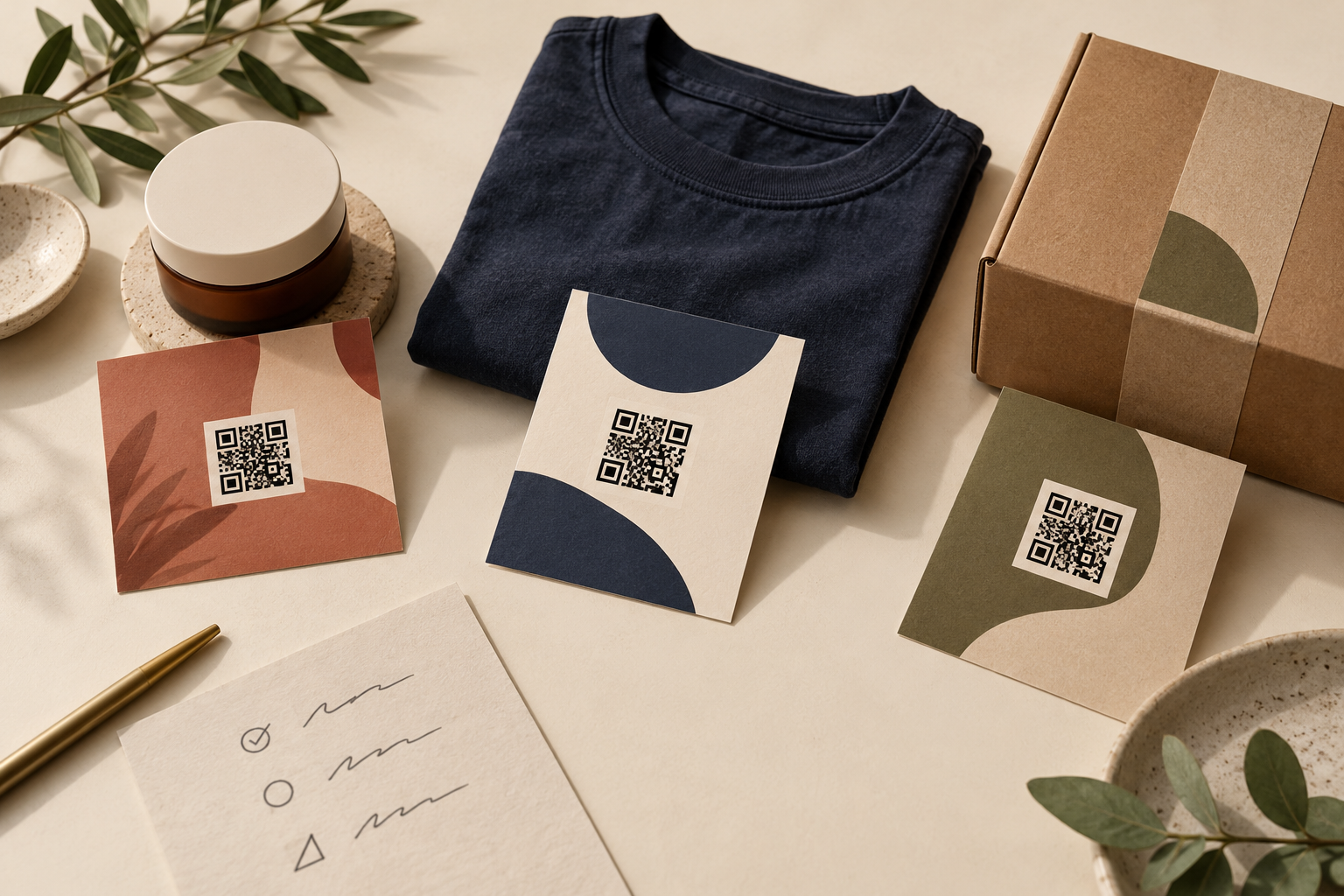
The 8 title directions I considered
Before drafting, I brainstormed these eight directions:
- How to Add QR Codes to Shopify Package Inserts Without Creating Dead Links
- I Test Every Shopify Package Insert QR Code Before It Ships
- A Practical QR Code Checklist for Shopify Orders
- What Should a Package Insert QR Code Link To?
- How I Build QR Code Inserts for Product Care and Reorders
- The Low-Risk Way to Test QR Codes on Ecommerce Packaging
- QR Codes for Shopify Packaging: Useful Destinations, Not Marketing Clutter
- How to Create a Scan-to-Help Package Insert for Shopify
I picked the second because it has a clear operator problem: avoiding a bad customer moment after the package is already in the mail.
Start with the job, not the code
For every insert, I write one sentence: When this customer scans, what are they trying to do? The answer decides the destination.
For a first order, I usually choose one of these:
- A short getting-started or care page for a product that needs it.
- A product-specific reorder or subscription page for something consumable.
- A sizing, fit, or assembly guide when uncertainty causes support tickets.
- A small post-purchase collection with one relevant cross-sell—not the entire catalog.
A QR code should not carry a URL for a temporary discount, a password-protected preview, or a homepage that makes the shopper start searching again. If I cannot name the customer benefit in a sentence, I leave the square off the insert. This is the same decision discipline I use when I plan product tabs around shopper decisions: the extra surface has to answer a real question.
Generate a clean code from the final destination
Once the destination is settled, I use Tiny Online Tools’ QR Code Generator. It accepts a URL or text and lets me choose a size and error-correction level. The useful operational detail is that the tool runs in the browser; I do not have to paste a private campaign or customer-specific preview URL into a random account-based generator.
My rules are deliberately unglamorous:
- Use the final canonical URL, including the exact landing page and any intentional tracking parameters.
- Keep the destination short and stable. If I need attribution, I use the tracking setup we already maintain rather than inventing a new redirect every campaign.
- Leave enough empty margin around the code in the layout. Decorative borders and busy photography make a technically correct code annoying to scan.
- Use more error correction when the insert will be handled a lot, printed on textured stock, or tucked into a box where it can get creased.
If I am making codes for several SKUs or inserts, Tiny Online Tools also lists a QR Code Batch Generator from the generator page. But I still prepare a small pilot before I print hundreds. Batch creation is not proof that the destinations are sensible.
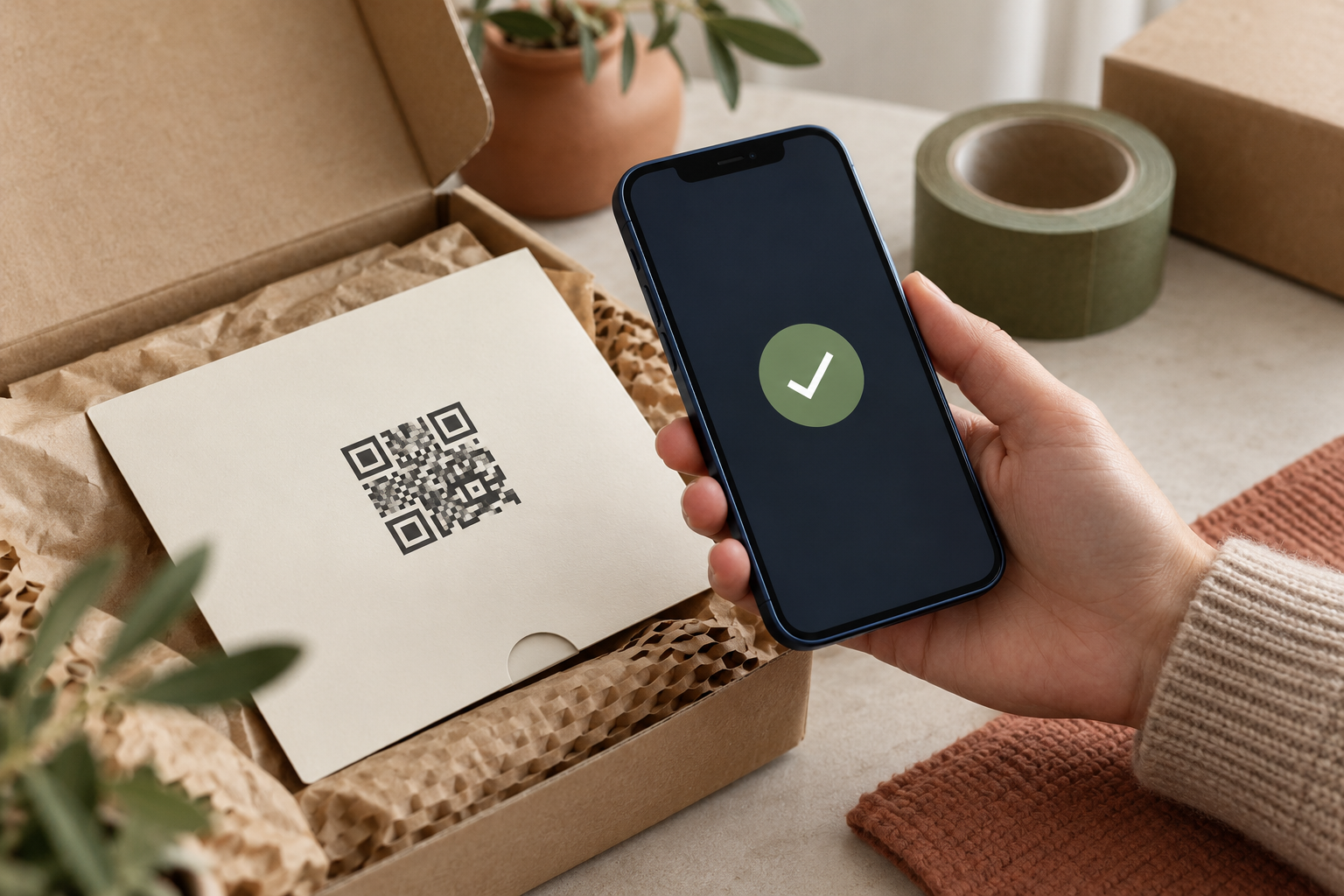
Test the physical version, not just the browser preview
The failure mode is rarely “the QR code did not generate.” It is usually a code that looks fine on a laptop and fails in the real conditions of fulfillment: matte stock, a dark ink color, a fold, a shipping-day substitution, or a phone held one-handed.
I print one insert at the same scale and on the same stock as the order, then test it from a few boring but important conditions:
- Scan it on an iPhone and an Android phone if the team has both.
- Try it in normal light and in the softer light near the packing table.
- Hold the phone farther away than a designer naturally would.
- Confirm the final page loads on mobile and its first screen answers the promise on the card.
- Make sure the destination is live without a staff login, preview cookie, or a regional redirect surprise.
For a quick independent check, the QR Code Scanner can read a code from an image or the camera. It is a useful last check after exporting the design, especially when the person who designed the card is not the person packing the orders.
The practical standard is not merely “it scans.” It is “it takes a customer somewhere they immediately understand.” I apply the same attitude when I run a Shopify color contrast check before publishing: a nice-looking choice still has to work at the moment someone relies on it.
Keep the content useful after the campaign
A code can outlive a campaign, especially if you order inserts in bulk. That is why I prefer a stable, product-owned page over a one-time launch page. For example, a care page can add an FAQ, a refill reminder, and one relevant accessory over time without changing what the code means.
This is also where I resist adding every possible next step. Customers who are unboxing do not need a promotional maze. One primary action is enough. If I want to send them to a product page, that page should already have its information under control—similar to the system I use to organize product content before adding tabs.
Know when a barcode is the actual tool
A QR code is for a shopper-facing action. It is not a substitute for an inventory or retail barcode. If the job is internal SKU handling, a shelf label, or a scannable item identifier, use the Barcode Generator instead. It supports common formats including CODE128, EAN-13, UPC-A, CODE39, and ITF-14, and lets you download PNG or SVG output.
Keeping those two roles separate saves confusion at receiving and fulfillment. I do not want a warehouse scan to open a care guide, and I do not want a customer-facing package insert to expose internal logistics identifiers.
My pre-print checklist
Before I approve an insert run, I check:
- The QR code resolves to the intended live, mobile-ready destination.
- The card’s plain-language sentence matches that destination.
- The printed proof scans on more than one phone.
- The code has enough contrast and quiet space.
- A campaign end date cannot make the insert misleading.
- The packing team knows which insert goes with which product family.
This is a small quality-control loop, but it protects a moment you already paid to create: the customer opening the order. For more lightweight operations tools—QR, barcode, image, document, and data utilities—I keep Tiny Online Tools bookmarked. Start by testing a single printed insert from the next batch; if the destination is useful without explaining it to someone, it is ready to ship.
A clean package insert is not a growth hack. It is a promise that the next scan will be worth the customer’s time.