I Audit Shopify Collection Swatches Before I Touch a Product Template
I used to treat color swatches as a product-page detail. Pick a shape, add a hex value, move on. Then I watched a collection page fill up with nearly identical cards, a product page show six colors that were actually six different fits, and a customer ask whether "stone" and "sand" were the same item.
The problem was not the swatch design. It was that I had never audited what a color meant in the catalog. Now I do that work before I touch a template. It takes one focused pass, and it makes the product page, collection page, and merchandising rules agree with each other.

Start With the Shopper’s Decision
For each color option, I ask one question: does choosing this color keep the shopper in the same buying decision?
If the answer is yes, it normally belongs in a variant. A navy tee in the same cut, price, fabric, and size range as the cream tee is a straightforward variant choice. The shopper is comparing the same product.
If the answer is no, I treat it as a separate product linked by a swatch. A cropped linen shirt and a relaxed overshirt may share a color family, but they have different fit questions, imagery, merchandising, and sometimes price. Putting them in one variant picker makes the choice look simpler than it is.
This distinction is the part I want settled before anyone worries about circles versus squares. I use a short audit sheet with these fields:
- product family and collection
- color name used on the storefront
- variant or separate product
- available sizes, price, and inventory differences
- first image shown for that color
- whether the choice should appear on collection cards
That sheet also catches the naming drift that creates messy filters later. If you are already revisiting a color system, it is worth checking the underlying product media too. I use the same discipline I described in my product photo metadata handoff check: confirm the source before the downstream display starts making decisions for you.
Audit the Collection Before the Product Page
The collection is where a swatch decision either earns its keep or creates a wall of duplicate cards. I open the collection at desktop width and mobile width, then look for three failures:
- False variety. Six cards may be the same garment split by color, making the collection feel repetitive.
- Hidden variety. One card may hide several genuinely distinct products that should be discoverable on their own.
- Broken expectation. The collection swatch changes the visual promise, but clicking it opens a product page that does not continue that selection.
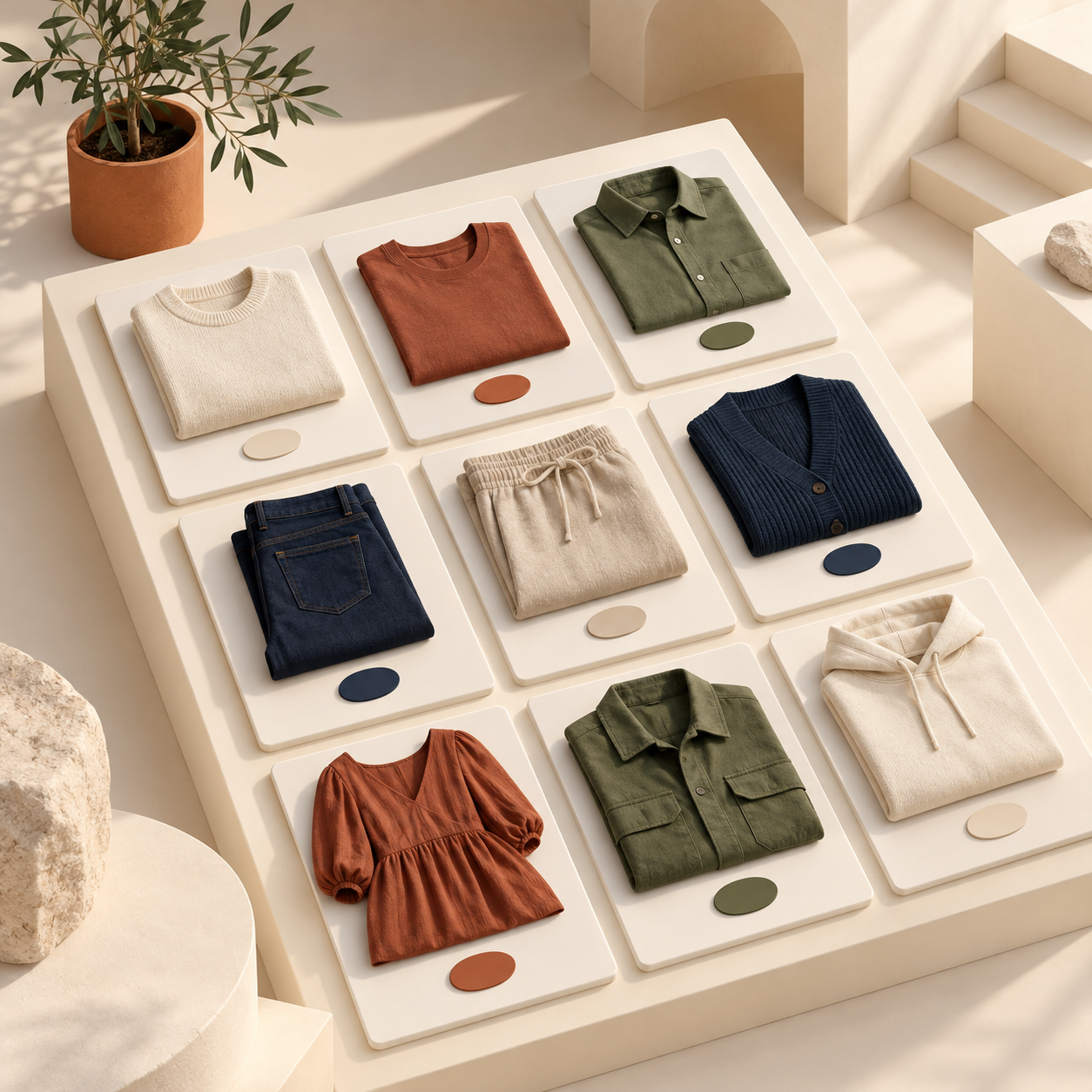
A clean collection grid does not need every possible choice exposed. It needs the right discovery path. For a true variant, I want the card to show the available color choices without multiplying the card. For a product family, I want linked-product swatches to help a shopper move among the related pages deliberately.
This is also why I prefer a system that works on both product and collection pages, rather than a one-off theme patch. Supra Swatch Colors supports color and image swatches for variants and linked products, and it can surface them on collection pages without code. Its automatic color detection or product-image setup is useful when the catalog is large, but I still review the visible result manually. Automation speeds up setup; it does not decide whether "forest" is a variant or a different product.
Make the Image Rule Explicit
Color swatches only help when the image beside them earns the shopper’s trust. My rule is simple: the selected color needs to be visible in the primary image, or the store needs to switch to an image that makes the selection obvious.
That means I test a few awkward cases, not just the hero SKU:
- dark-on-dark products where the swatch is easier to read than the photo
- patterned items where a color name is insufficient
- a product family with different cuts that happen to share a color
- multilingual storefront labels that make a literal color name ambiguous
The app supports multilingual shops and lets you adjust the label, tooltip, size, and style of the swatch. I see those controls as clarity tools, not decoration. A concise tooltip can distinguish "Navy / brushed cotton" from "Navy / lightweight linen" when the color alone is not enough.
For related setup decisions, my earlier guide on Shopify swatch rules for multi-color products is a useful companion: it focuses on keeping color logic legible when a product genuinely has more than one color signal.
Run a Small Pilot, Then Scale
I do not start with every product. I pick one collection with enough complexity to be honest: 12 to 30 products, several color families, at least one linked-product decision, and a handful of items where the main image changes meaningfully by color.
Then I run this sequence:
- Define the color labels and the variant-versus-linked-product rule.
- Configure one swatch style that suits the theme and check its contrast at normal zoom.
- Test the collection card, product page, and mobile experience for the full path.
- Ask someone unfamiliar with the catalog to find a specific color and fit.
- Fix the first point where they hesitate, then document the decision.
That last step matters. A written rule prevents a new product from quietly undoing the taxonomy next month. It is the same principle behind planning product tabs around shopper decisions: the structure should follow what a shopper is trying to resolve, not how the merchant happened to enter data.
My Practical Starting Point
If your collection currently feels cluttered, do not redesign every product template first. Audit one collection, classify each color choice, and make the collection behavior match the decision behind it. Once that is solid, a swatch system becomes a navigation tool instead of a small visual flourish.
If you want a no-code way to test the result across product and collection pages, install Supra Swatch Colors and start with a deliberately small pilot. The fastest win is not more color dots. It is fewer moments where a shopper has to guess what the color choice actually changes.