How to Edit a PSD File Online Without Rebuilding the Design
I do not rebuild a product design just because I need a new price, a cleaner background, or one corrected line of copy. The safer answer is to open the PSD, make the smallest reversible change, and export a separate delivery file. A browser editor is enough for that job when it preserves the layers and tools the file actually depends on.
ImageFlow is useful here because it runs in the browser and lists PSD/PSB import and export alongside layers, masks, adjustment layers, smart objects, text, and filters. That is not a promise that every complex agency file will round-trip perfectly. It is a practical way to handle a bounded update without installing a desktop editor or flattening the working document.
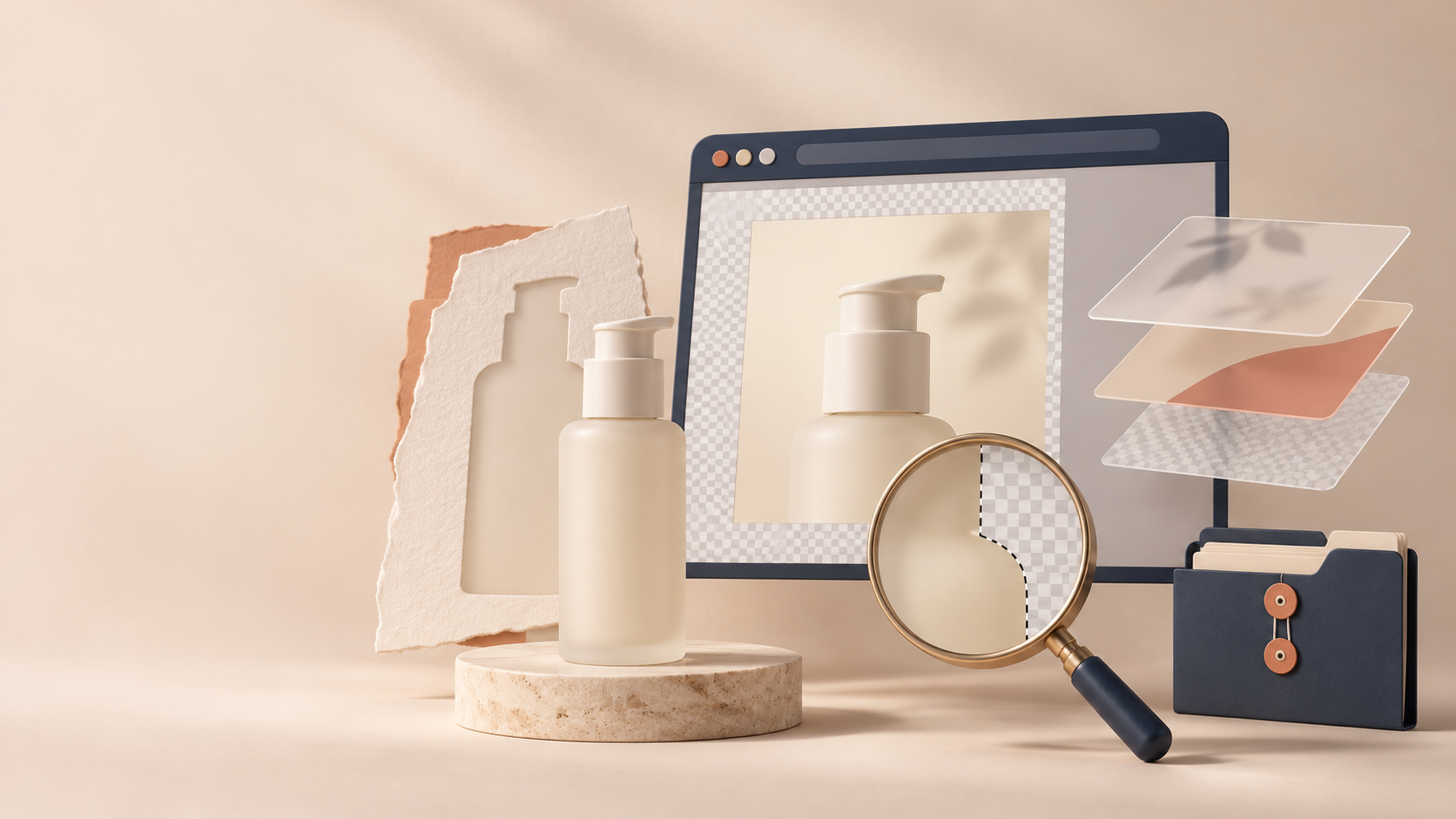
Start by deciding whether the PSD is the right source
Before I touch a file, I ask one question: is this the editable master, or is it merely an export someone named .psd? The answer changes the risk.
Open the Layers panel and look for the parts that should remain editable: the product cutout, copy, background, shadows, adjustment layers, and any smart objects. If all you have is one flattened layer, a browser editor can still make a careful pixel edit, but it cannot restore the original design system. Ask for the master before changing a campaign asset that will need more variants later.
This is the same reason I keep a clear photo source before cleanup. In my product-photo fidelity check, the important decision is not whether an edit looks plausible at thumbnail size; it is whether the SKU still looks like the item the buyer will receive.
Use a mask before deleting pixels
For a small cleanup—removing a distracting prop, swapping a neutral background, or tidying an edge—I start with a selection and a layer mask. ImageFlow documents object selection, on-device background removal, masks, and content-aware fill as browser tools. The order matters:
- Duplicate the layer or keep the source layer untouched.
- Create and refine a selection around the real product.
- Add a mask rather than pressing Delete.
- Put any replacement background on its own layer underneath.
- Use a separate adjustment layer for exposure or color.
That gives you a recovery path when you discover that a transparent cap, a pale seam, or a reflection has been clipped away. I zoom in on labels, edges, stitching, glass, and shadows before I decide the mask is finished.
Avoid the temptation to use cleanup as product invention. Removing dust from a sweep is one thing; changing the material, color, included accessory, or dimensions is another. If a product needs a genuinely different photo, schedule it.
Make the smallest useful PSD change
A good handoff begins with a short change note: “replace the headline,” “correct the shadow edge,” or “make a 4:5 social crop.” That keeps a five-minute edit from turning into a silent redesign.
| Request | Safe editable approach | Check before export |
|---|---|---|
| New campaign copy | Edit the text layer; preserve the existing style | Line breaks, trademark spelling, mobile crop |
| Cleaner background | Mask the product and use a separate background layer | Edge halos, transparent areas, realistic contact shadow |
| Brighter image | Add an adjustment layer instead of changing pixels | Product color against the physical sample |
| New marketplace size | Duplicate the artboard or crop non-destructively | Required dimensions and no cropped product details |
For a text change, I check the font, weight, tracking, and line breaks at the destination dimensions—not just in the roomy PSD canvas. For an image change, I check the product itself against a reliable source photo. That modest discipline is why a three-image product-photo gate is more useful than a vague “looks good” review.

Keep the master and the export as separate files
My naming rule is boring on purpose: one master, one dated delivery. For example:
ceramic-mug-holiday-master.psdceramic-mug-holiday-email-1600x900-v03.jpg
Do not overwrite the master with the JPEG you are about to upload. Export the web file only after the visual check, then reopen the exported image once. That last open catches an unexpected crop, a missing layer, or a color shift while the original is still intact.
This is especially helpful for stores that need several placements. A collection tile, product-page hero, email block, and paid-social crop should be related exports—not four separately “fixed” product photos. If you need a broader working system, this guide to product detail sources explains why a reusable source beats copy-pasting the same information through the stack.
Run a four-point product integrity check
Before publishing, I review the delivery at 100% and at its likely storefront size. My checklist is short:
- Edges: no cut-off corners, hairlines, handles, or transparent packaging details.
- Truth: label, color, texture, quantity, and accessories match the actual item.
- Shadow: the contact shadow is believable and does not imply a different shape.
- Format: dimensions, crop, file size, and filename match the destination.

That check is also my boundary for AI-assisted editing. Browser-based selection or background removal can reduce repetitive work, but it does not transfer responsibility for the final product claim. For a storefront, I would rather ship a slightly less dramatic image that is accurate than a glossy one that creates a return.
When a browser PSD workflow is enough—and when it is not
Use a browser workflow for contained changes: a layer update, mask refinement, text correction, crop, simple retouch, or export. Test a representative file first if the PSD has complex smart objects, unusual color modes, or a long production history.
Hand the file back to the original production team when the change affects brand rules, requires a new scene, needs specialist color management, or depends on features you cannot verify in the file. The goal is not to prove that a browser can replace every desktop workflow. The goal is to avoid blocking a legitimate small change behind a full creative cycle.
Open ImageFlow with one low-risk PSD and try one reversible edit: update a text layer, add a mask, and export a copy. If the layers and final output behave as expected, you have a useful bridge between a small ecommerce request and the next full design pass.